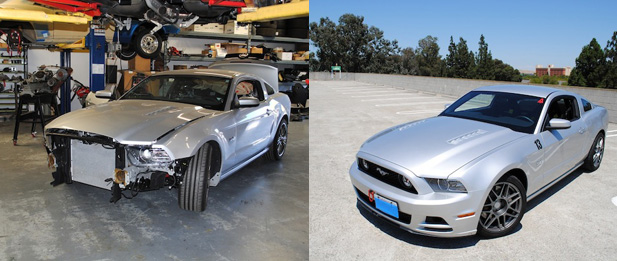
It’s now time for “Modding a Mustang GT: The Final Product… Kinda”. Here I’m going to list exactly what parts were placed on the car, in what stages we did them, cost, and what (if any) my future plans are.


Want to know how to get the most out of IB’s forums? Check out the handy guide below—just reading it will make you smarter and better looking. Actually, that’s totally made up. Nonetheless, this killer guide will help you bottom line!
Logging in
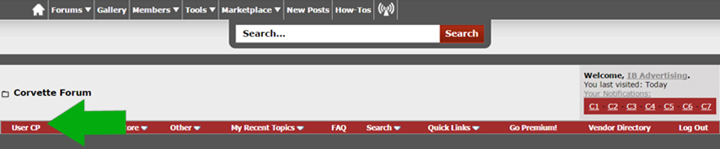
Start off by editing your profile. To do this, click the ‘User Control Panel’ link that appears after logging in.
The User Control Panel (User CP) allows you to alter personal preferences, manage posts you are watching, send and receive private messages, and change the way information about you appears to other users.
Tell us about yourself. Where are you from? What are some of your hobbies? How can customers and community members contact you?
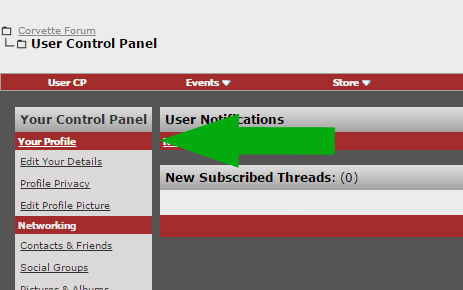
Edit Your Details
Profile Privacy
Edit Profile Picture
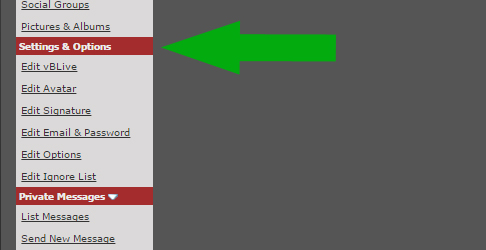
Setting & Options
Edit Avatar
Edit Signature
Note: Turn on your signature through your settings option.
Edit Email & Password
Edit Options
Once you are logged in, using the menu bar at the top of the page, locate and select the link that directs you to the Vendor Directory page of the site. Here you will find all active vendor listings viewable to site visitors.
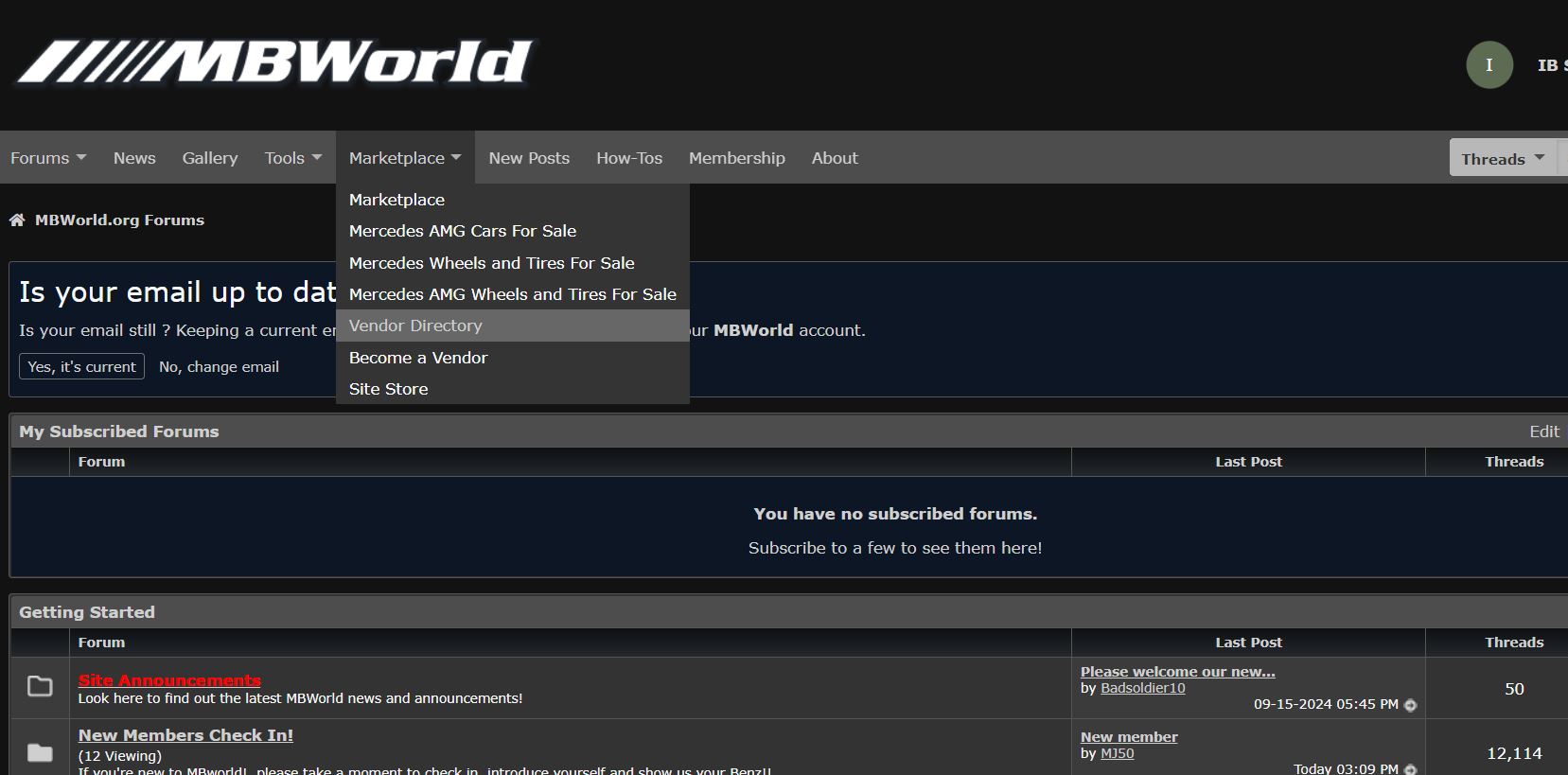
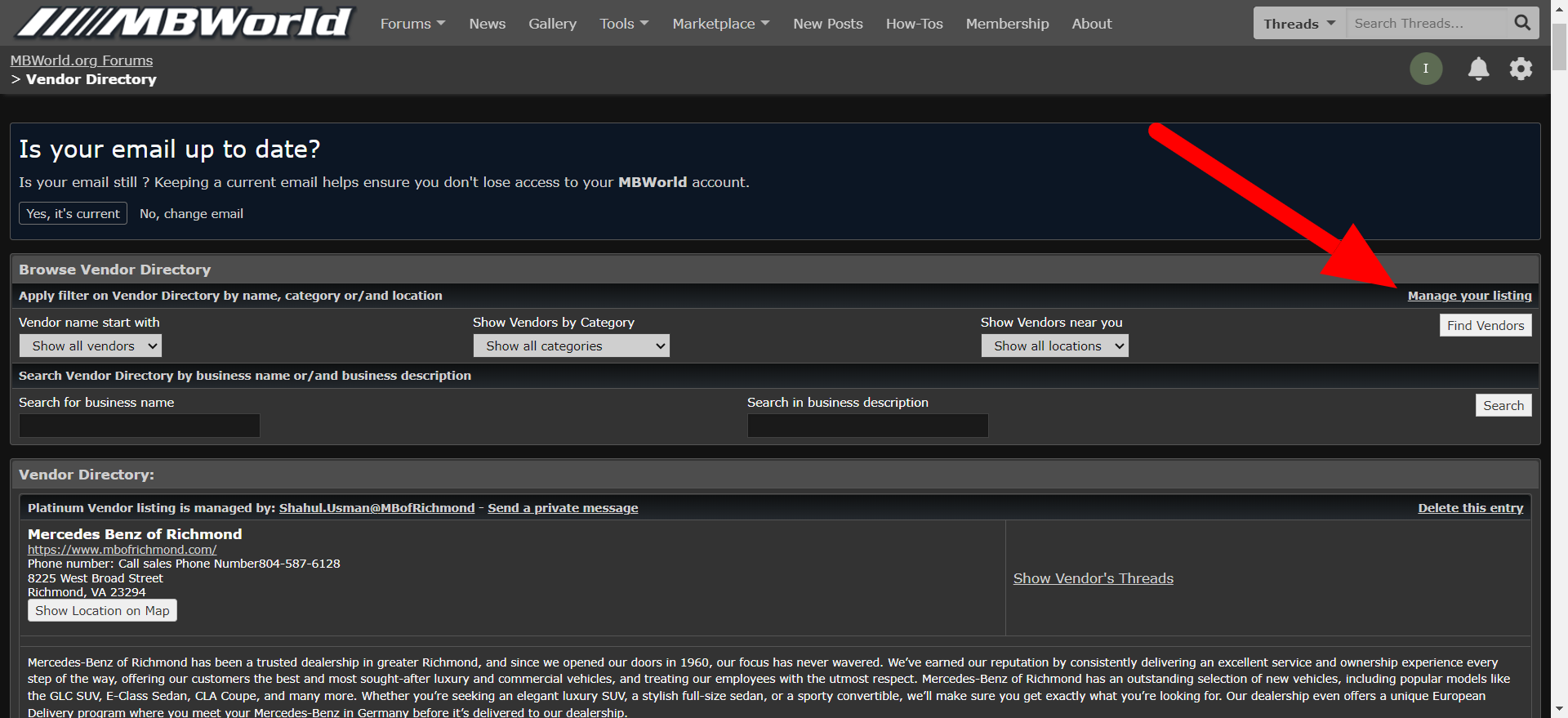
In the top right corner of the VD page you may now select the Manage Your Listing link, which will take you directly to the editing tool. The screenshot below shows what this link looks like.
As shown below, the editing tool allows you to input and edit your company information. You may now save the listing once all changes have been made and your listing will then begin to display on the main VD page permanently until your account has been downgraded for non-use.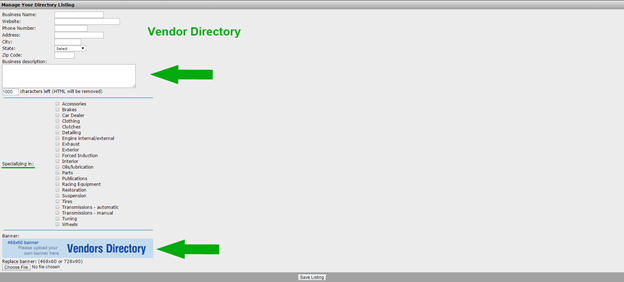
My Vendor Directory
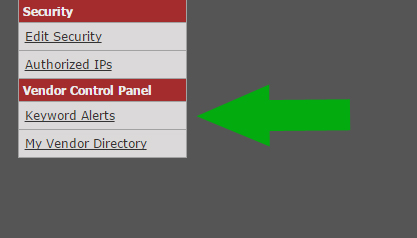
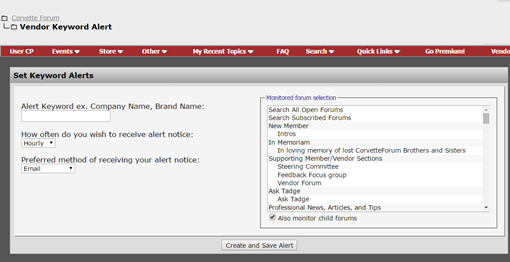
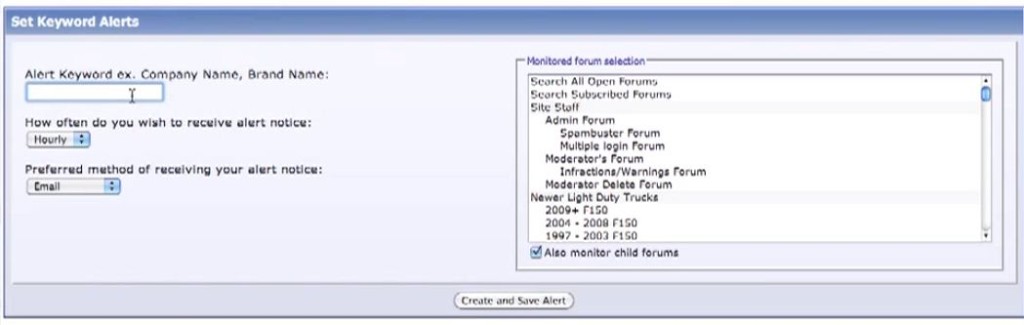
Note: We recommend you receive keyword alerts daily and through PM and Email. This allows you to better keep track of conversations and mentions.
The bulletin board as a whole contains various categories (broad subject areas), which themselves contain forums (more specific subject areas) which contain threads (conversations on a topic) which are made up of individual posts (where a user writes something).
The board home page has a list of categories and forums, with basic statistics for each – including the number of threads and posts, and which member posted the most recent message.
Forum Index Page
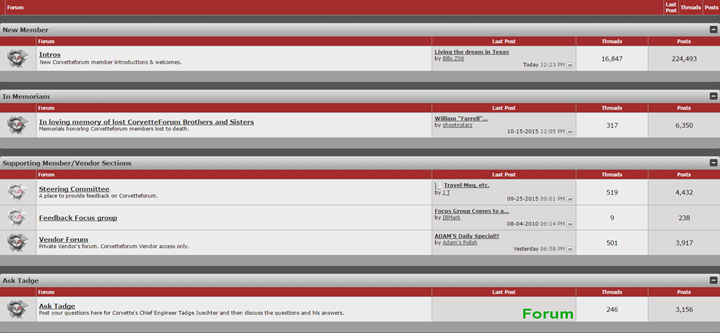
The forum index page is the homepage to forum content. This page with help you find specific Sub–Forums.
Sub-Forums
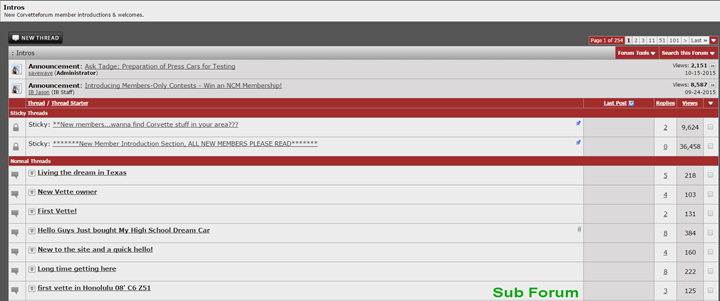 Sub-Forums are specific forums that gear discussion around a general topic. Sub-forums are indexed to specific car models, auto information and parts, geography, news, and even hobbies!
Thread
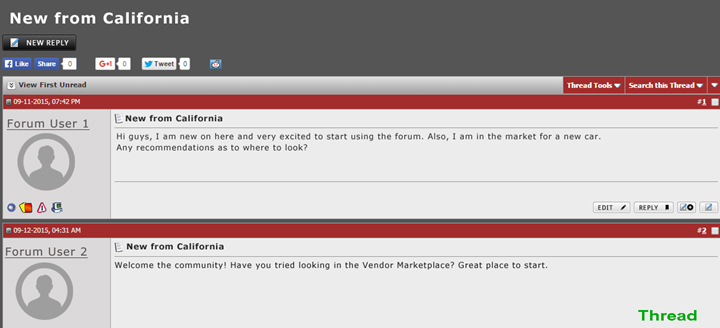
When clicking on a specific sub-forum, you’ll then find a list of threads that narrow down discussion further to a specific topic. You can find sub-forums for pretty much anything automotive related.
Navigation Bar 1
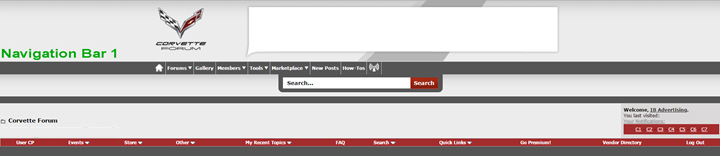
Home Button – Directs you to the CMS (Content Management System) page where you may find articles and blog posts pertaining to the forum’s specialty. Note, not all forums contain a CMS page.
Forums – By clicking this link you can always be directed back to forum index page.
Gallery – You may find photos from forum users and upload your own too!
Members – Learn more about users with the member directory.
Tools – Useful links to keep track of forum members, search threads, and stay updated with events.
Marketplace – The marketplace is where you’ll find products and cars for sale from vendors and users.
New Posts – This link will direct you to the most recent threads.
How-Tos – How-Tos are helpful articles to help you do practically any automotive job yourself!
Navigation Bar 2
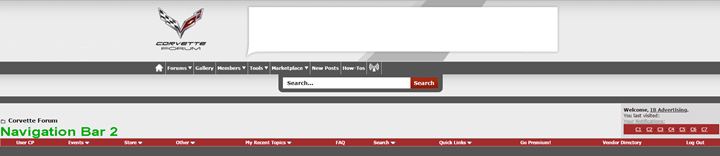
The second navigation bar at the top of forum page allows you to edit more personal settings and has several helpful links. Clicking on some links once will also bring up a dropdown menu for site specific options.
User CP – Directs you back to your User Control Panel page where you may edit your profile & settings.
Events/Calendar – Find events members are hosting near your area.
Store – Let others know you’re an enthusiast by sporting some sweet site swag.
Search – Find topics, members, and listings through our search engine.
Quick Links – A useful link to direct you to the most common areas on the forum.
Vendor Directory – Find products and services for all your automotive needs.
Log out – See you again soon!
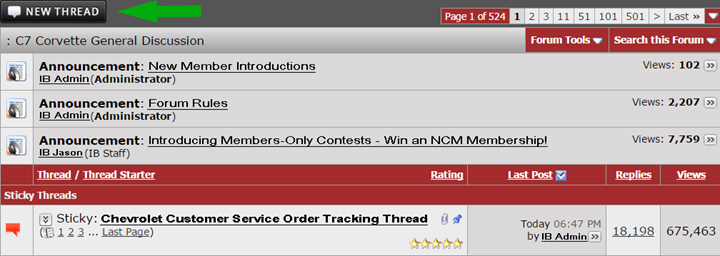
Start a New Thread
Click on the ‘New Thread’ button
Please watch the following video for a detailed demonstration on how to post a new thread on the forums:
Reply to a Post
Click on the ‘New Reply’ button.
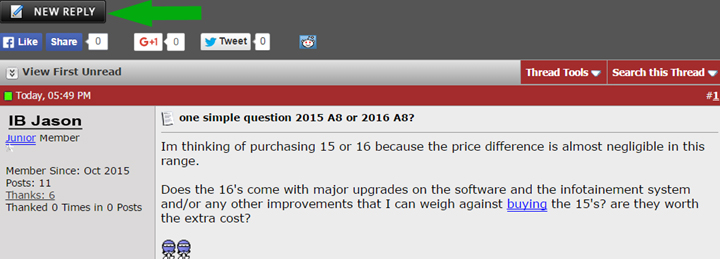
Note: If the ‘New Reply’ button does not appear, it means: You are not logged, you do not have permission, or that the thread has been closed to new replies.
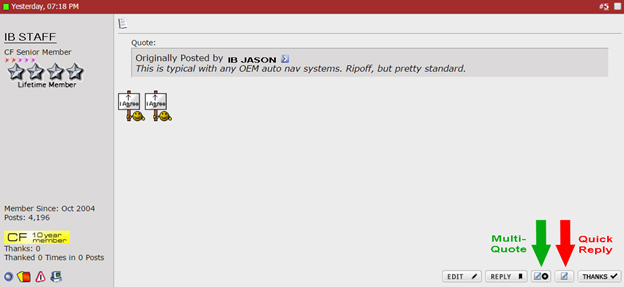
Quick Reply
To reply to an existing thread, click on the ‘Quick Reply’ button in a post to activate the quick reply box before you can type into it.
Reply to Multiple Posts
To reply to multiple posts, click on the ‘Multi Quote’ button.
Please watch the following video for a detailed demonstration on how to reply to posts on the forum:
Files and Attachment Sizes
There are a list of allowed file types and their maximum sizes in the attachment window.
Note: Files that are larger than stated sizes will be rejected.
Attach a File to a Post
1.Using the main ‘New Post’ or ‘New Thread’ page (not ‘Quick Reply’), click on the ‘Post Reply’ or ‘New Reply’ button. You can find this option on the top or bottom of the thread page.
2. Click on the Attachment Icon or ‘Manage Attachments’ below the message box.
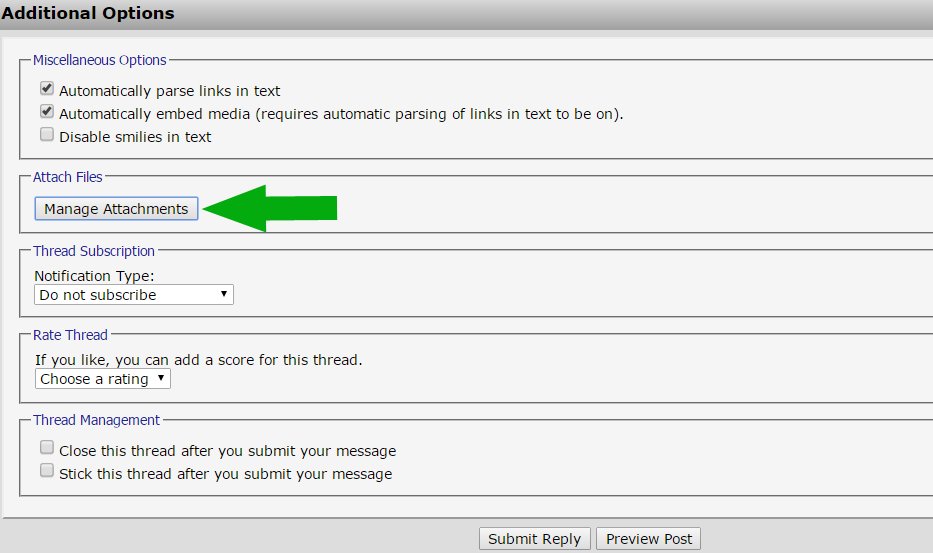
3. A pop-up window will appear and allow you to upload attachments from either your computer or through a URL
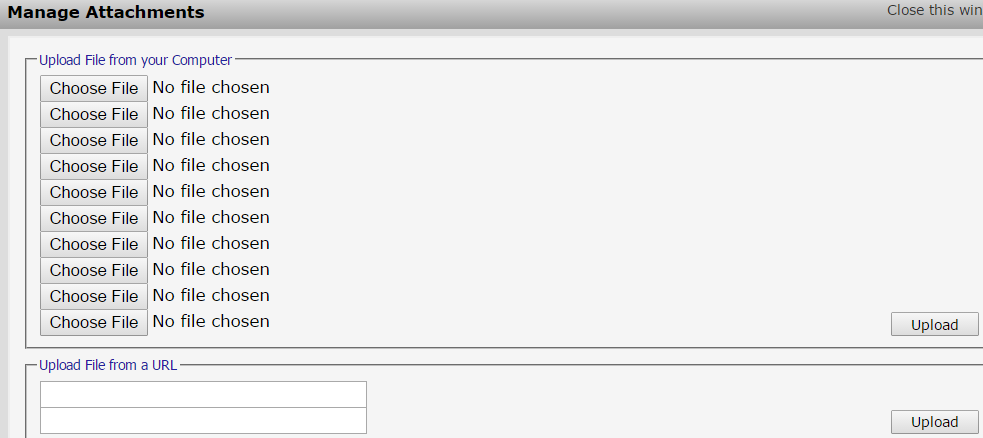
4. Click on the ‘Choose File’ button and locate desired attachment
Note: To upload a URL file, enter the full URL of the file in the second box of the page.
5. Once you have selected or entered the URL of your attachment, click ‘Upload’.
Note: When the attachment is uploaded, the file name will appear below the input boxes of the message window.
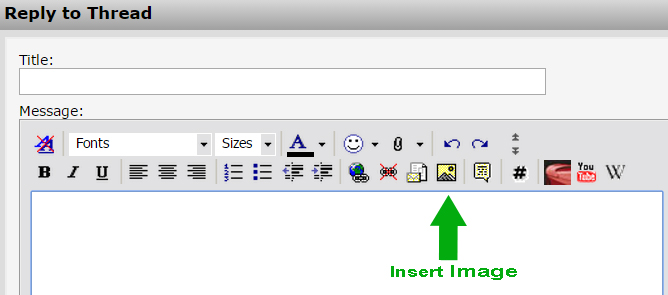
Insert Image to a Post
Send Private Messages
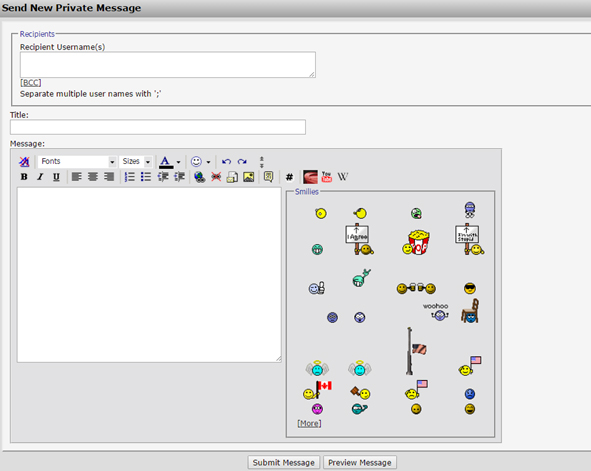
Private messages work a little like email, but are limited to registered members of the forum. You may be able to include BB code, Smilies, and Images in private messages that you send.
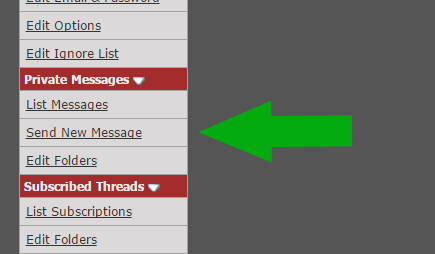
1. On your User Control Panel page, scroll down to your ‘Private Messages’ section and click on the Send New Message link. The link will direct you to the private message window below.
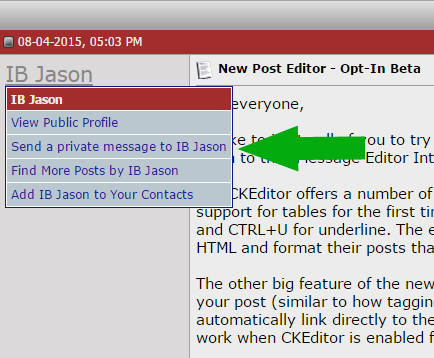
2. You may also click on the ‘Send a Private Message’ link on the drop down menu that appears on a member’s posts upon clicking their username.
Folders in Private Messages
You have two folders in your private message area: ‘Inbox’ and ‘Sent’ Items folders:
Deleting Messages
Please delete old messages periodically to adhere to a set limit of private messages. If the number is exceeded, you will not be able to send or receive new messages until you delete some old ones.
Downloading Messages
Click on ‘Download as’ to store a copy of your messages onto your computer.
Still not finding any answers? Check out our detailed forums guides located in our FAQ page. This link can be found on your second navigation bar. You may also contact accountmanagement@internetbrands.com for more help.
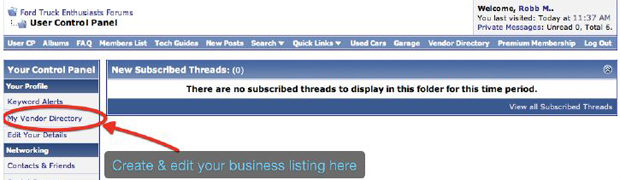
Our interactive Vendor Directory increases your exposure to more customers by listing your services and products with a direct link to send you an inquiry. Customers in your local area can also find you by clicking on the map feature. Continue reading
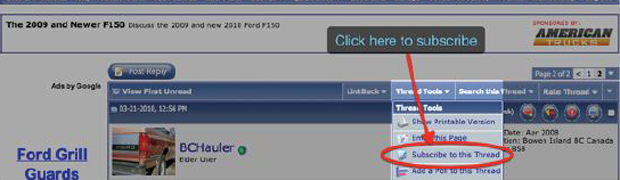
We realize your time is valuable. Thread Subscriptions are a useful tool in eliminating the time you spend searching for threads where you are tracking the conversation. Subscriptions are designed to ensure you never miss a response to your sales threads or important conversations. Continue reading

Welcome to Internet Brands! The new Vendor section of our blog is here to help you make the most of your time as you advertise your business, services or products in our Auto Enthusiast forums. In the age of Facebook, Twitter and other major social media channels, the power of forums in reaching out to your customers should not be overlooked. Continue reading
Copyright © 2026 MH Sub I, LLC dba Internet Brands

